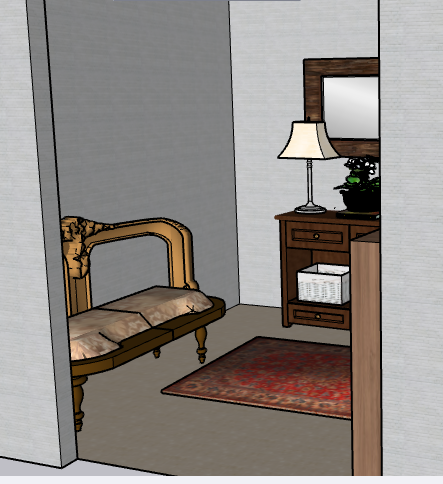
How I Use Sketchup
MeasureScale
Design
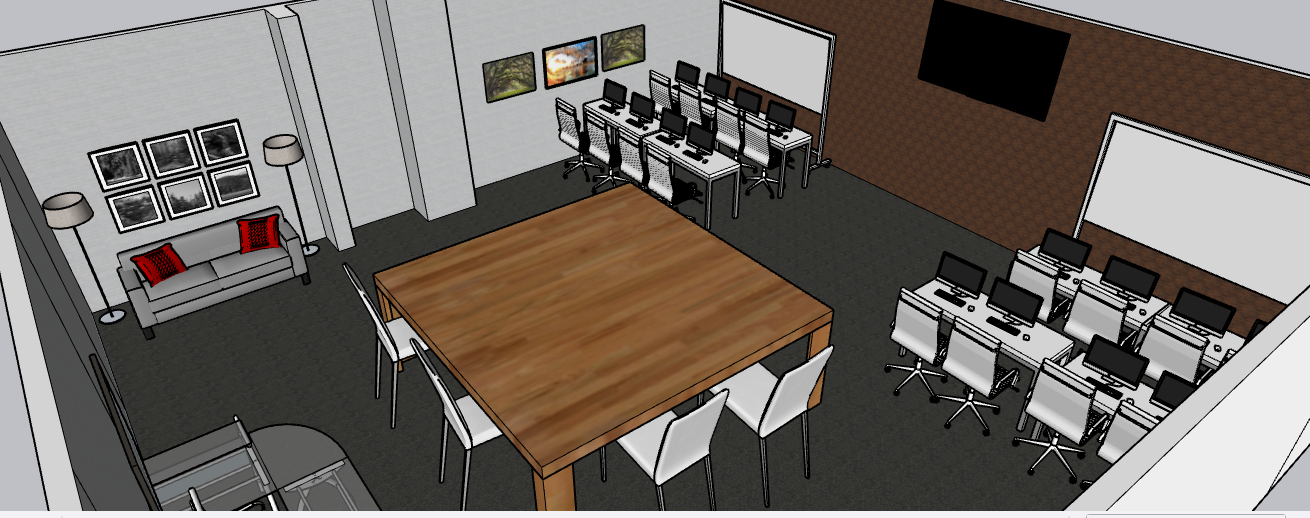
Below, you will learn some simple steps to creating your own classroom using Sketchup. With the right tools, you can create anything!
Using Sketchup, has allowed me to use my imagination and transform it into something real. Between measuring and scaling, leading into designs with 3D Warehouse, I am able to bring things to life with just a click of a button.


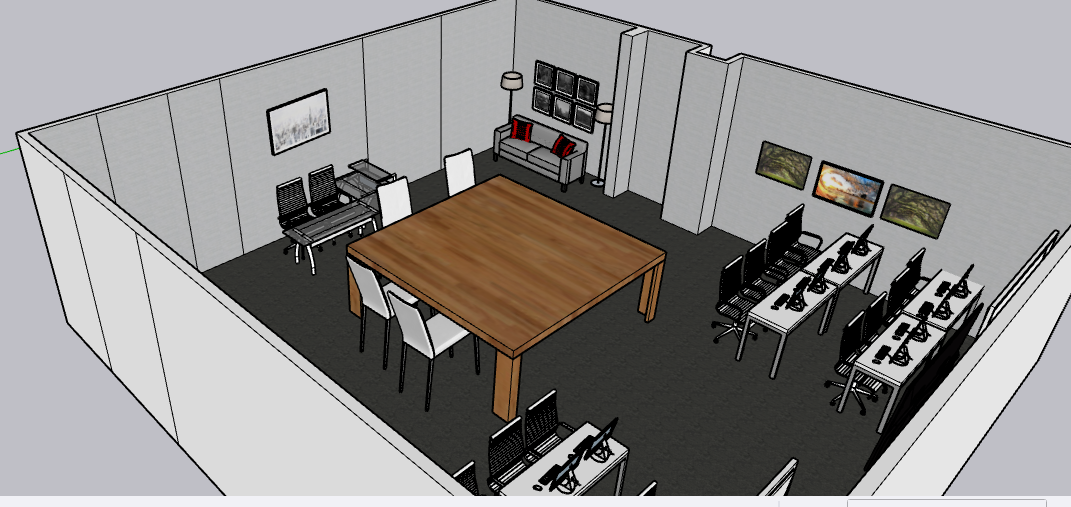
Step By Step Process
Create your own file and get acquainted with your everyday features.
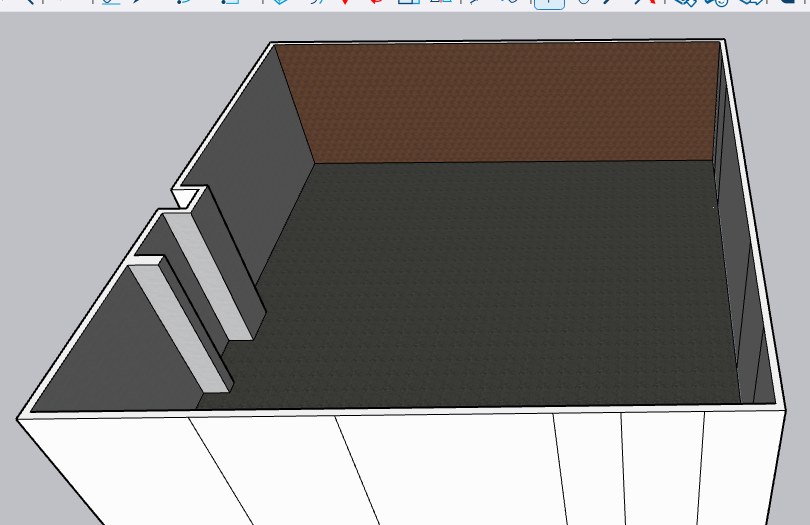
First things first, you need to download Sketchup to your computer or laptop then create a file using meters, feet, or inches. From there you can use the necessary tools like “Rotate”, “Scale”, “Push/Pull Tool”, “Orbit” and your Paint Bucket. Then using your Pencil Tool, you can draw out your preferred space. You also need create an account SketchUpTextureClub! This is a website you can access any of your textures for flooring and walls!
Create your walls, windows, and doors. MEASURE and SCALE your desired space.
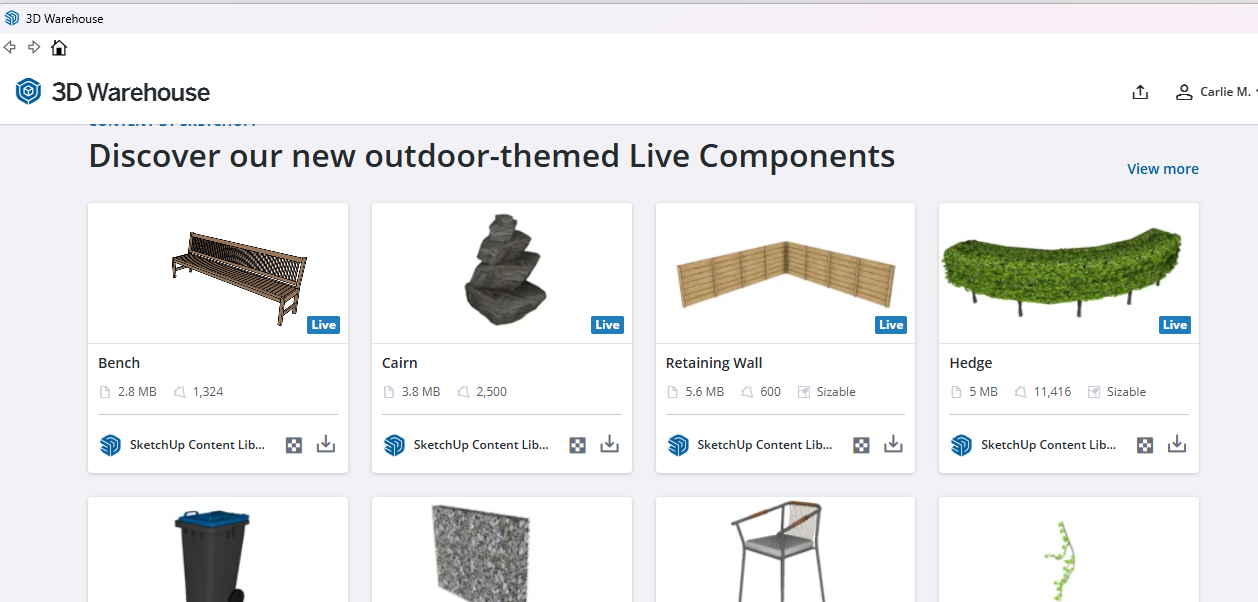
Using your Push/Pull Tool, you can move up or down on your rectangular space and drag it to your desired height. Next, you can outline your wall space and use the same technique to create windows and doors! 3D Warehouse is your best friend in Sketchup! You can find the perfect door with just a quick click in the search bar! Big or small pieces can also be placed in your space using 3D Warehouse!
DESIGN your space and put your finishing touches.
After finding all of your pieces for your space, make sure they are level with your axis! Use your Rotate tool!! Using your paint bucket, you can select your flooring color, wall paint, and you can even change the colors of your pieces! Be sure to click File and Save. Have fun using Sketchup!
Want to Know More?